Design Tool Matcher
Answer these three questions to find out which tool aligns with your current project goals.
Your Recommended Tool:
You’ve probably been there. You need to whip up a social media post, a presentation deck, or maybe a quick landing page mockup. Two names pop into your head immediately: Figma and Canva. They’re both cloud-based, they’re both drag-and-drop friendly, and they both let you collaborate in real-time. So, are they basically the same thing? Is Figma just a fancy version of Canva, or is Canva a simplified version of Figma?
The short answer is no. While they share a similar interface philosophy-clean, browser-based, collaborative-they serve fundamentally different masters. Choosing the wrong one can cost you hours of frustration. If you try to build a complex mobile app prototype in Canva, you’ll hit a wall fast. If you try to design a marketing campaign for non-designers using Figma, you might scare them off with too many technical options.
The Core Difference: Precision vs. Speed
To understand which tool fits your needs, you have to look at their DNA. Figma is a vector graphics editor built specifically for user interface (UI) and user experience (UX) design. It’s the industry standard for product teams because it handles precision, component libraries, and developer handoff better than almost anything else.
Canva, on the other hand, is a graphic design platform aimed at content creation. Its superpower is speed and accessibility. It’s designed so that a marketing manager with zero design training can create a professional-looking Instagram story in five minutes. It relies heavily on templates, stock photos, and pre-made elements rather than pixel-perfect vector manipulation.
Think of it this way: Figma is like a high-end CAD software for architects, while Canva is like a high-quality LEGO set for builders. One lets you engineer custom structures down to the millimeter; the other lets you assemble impressive things quickly using existing blocks.
Who Uses What? (And Why)
If you’re working in a tech company, startup, or agency focused on digital products, Figma is likely already on your screen. Product designers use it to wireframe apps, design websites, and create interactive prototypes. Developers love it because it gives them exact CSS values, font sizes, and spacing metrics directly from the canvas.
Canva dominates in marketing departments, small businesses, schools, and among freelancers who need to produce volume. Social media managers, HR specialists creating internal comms, and event planners making flyers all live in Canva. The barrier to entry is near zero. You don’t need to know what an "artboard" is to make something look good.
| Feature | Figma | Canva |
|---|---|---|
| Primary Use Case | UI/UX Design, Prototyping, Web Design | Social Media Graphics, Presentations, Marketing Materials |
| Learning Curve | Moderate to Steep (requires design knowledge) | Very Low (drag-and-drop simplicity) |
| Collaboration | Real-time multiplayer, comments, dev mode | Real-time editing, link sharing, team folders |
| Asset Library | User-created components, community plugins | Huge library of stock photos, icons, fonts, templates |
| Prototyping | Advanced interactions, variables, animations | Basic page transitions, simple links |
| Pricing Model | Free tier available; paid plans per seat/editor | Free tier available; Pro subscription unlocks assets/features |
Where Figma Shines: The Power of Components
The biggest reason designers stick with Figma is its component system. In Figma, you can create a button once, style it perfectly, and then reuse it across fifty screens. If you decide later that the button should be blue instead of green, you change the master component, and every instance updates instantly. This is called "detaching instances," but you rarely do it because the linking is so robust.
Canva has introduced "Brand Kits" and some reusable element features recently, but it doesn’t handle dynamic components anywhere near as well. If you change a logo in Canva, you often have to manually update it on every slide or page unless you use specific template locks. For large-scale projects where consistency is critical, Figma’s architecture saves massive amounts of time.
Another killer feature in Figma is Auto Layout. This is essentially flexbox for designers. It allows elements to resize and reposition automatically based on their content. If you add text to a button, the button grows. If you stack cards vertically, they space themselves evenly. Canva lacks this level of logical layout control, meaning you’re often nudging pixels by hand to get things aligned.

Where Canva Wins: Content Volume and Templates
Don’t let the technical superiority of Figma fool you into thinking Canva is inferior. For most business communication, Figma is overkill. Why spend twenty minutes setting up artboards and grid systems when you can pick a template that’s already sized for LinkedIn posts?
Canva’s template library is staggering. There are millions of designs for everything from resume headers to YouTube thumbnails. These aren’t just static images; they’re editable layouts with placeholder text and image slots. You swap out the copy, drop in your photo, and export. Done.
Furthermore, Canva integrates deeply with other tools. You can schedule posts directly to social platforms from within Canva. You can generate videos with simple timelines. You can even design print-ready brochures with bleed settings handled automatically. Figma can export PDFs, but it doesn’t natively handle print production nuances like CMYK color profiles or bleed lines without plugins or workarounds.
Prototyping: Interactive vs. Static
If you need to show stakeholders how an app flows, Figma is the winner. Its prototyping mode lets you connect screens with triggers (like "on click" or "while hovering") and define animation types (smart animate, dissolve, move). You can simulate scrolling, dropdown menus, and modal windows. When you share the link, users can interact with the prototype as if it were a real app.
Canva’s prototyping is much more basic. You can link pages together so clicking a button takes you to the next slide, similar to PowerPoint hyperlinks. But you can’t easily create micro-interactions or complex state changes. If you’re designing a website homepage that needs to look pretty but doesn’t need deep interaction testing, Canva works fine. If you’re testing user flows for a checkout process, you need Figma.
Cost Considerations
Both tools offer free tiers, but the limitations differ significantly.
- Figma Free: You get unlimited personal files and three collaborative files. This is great for solo learners or small startups. However, once you scale to a team, costs add up per editor seat. Viewers are usually free, though.
- Canva Free: You get access to thousands of templates and basic elements. The catch is watermarks on premium assets and limited export options. Canva Pro removes watermarks, unlocks brand kits, background remover, and magic resize features. For individuals, Canva Pro is often cheaper and provides more immediate value in terms of asset availability.
For agencies billing clients, Figma’s project structure makes it easier to organize client work. Canva’s folder system is simpler but less flexible for complex project hierarchies.
Can They Work Together?
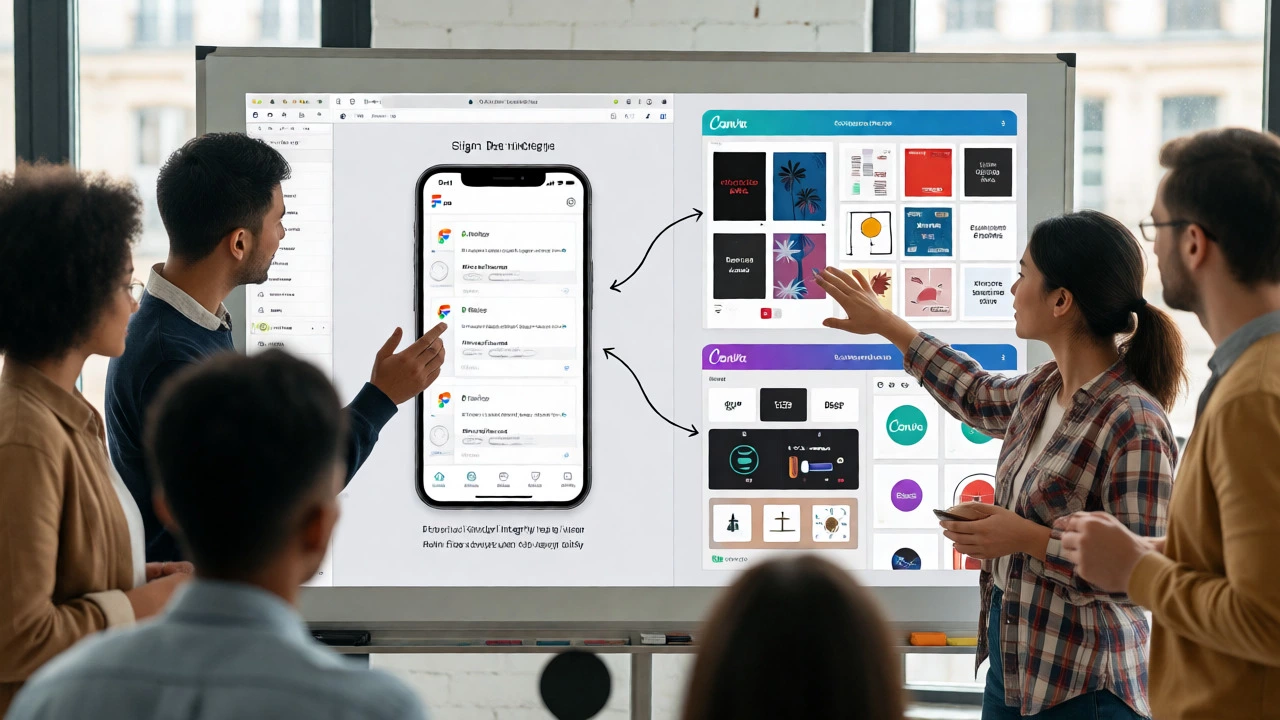
Yes, and many teams do exactly that. A common workflow involves using Figma for the core product design-app interfaces, website layouts, and design systems. Then, marketing teams take those brand assets (colors, fonts, logos) exported from Figma and plug them into Canva’s Brand Kit. They use Canva to churn out daily social media content, blog headers, and email newsletters that align with the product design but don’t require engineering-level precision.
This hybrid approach leverages the strengths of both. You maintain design integrity through Figma’s system while empowering non-designers to create on-brand content quickly via Canva.
Decision Guide: Which One Should You Pick?
Still unsure? Ask yourself these three questions:
- Are you designing a functional interface (website/app) or a visual asset (poster/social)? If it’s functional, go Figma. If it’s visual, go Canva.
- Do you need precise control over typography, spacing, and vector shapes? Figma offers pixel-perfect control. Canva snaps to grids and offers less granular control.
- Who else needs to edit the file? If it’s developers or other designers, Figma is expected. If it’s marketers or executives, Canva is friendlier.
Remember, neither tool is "better." They are optimized for different jobs. Using Figma for a birthday party invitation is inefficient. Using Canva for a banking app redesign is risky. Match the tool to the task, and you’ll save yourself a lot of headaches.
Can I import Figma designs into Canva?
Not directly. There is no native "Import from Figma" button in Canva. However, you can export assets (PNG, SVG) from Figma and upload them to Canva. For whole layouts, you’d typically rebuild them in Canva using the exported elements as references.
Is Figma harder to learn than Canva?
Yes, significantly. Figma requires understanding concepts like vectors, frames, constraints, auto-layout, and components. Canva uses a simplified model where you mostly drag, drop, and resize. Most people can start producing useful work in Canva within an hour; Figma usually takes days or weeks to feel comfortable.
Which tool is better for beginners?
Canva is far better for absolute beginners. Its intuitive interface and vast template library allow you to create professional-looking results without any prior design theory knowledge. Figma assumes you have some grasp of design principles.
Does Canva support vector editing like Figma?
Canva supports SVG imports and exports, but its internal editing capabilities for vectors are limited compared to Figma. You cannot manipulate individual anchor points or paths in Canva as freely as you can in Figma. For serious illustration or icon design, Figma (or Illustrator) is superior.
Can I use Figma for social media posts?
You can, but it’s not efficient. Figma doesn’t have a built-in library of stock photos or trending templates tailored for social media. You’d spend more time sourcing assets and setting up dimensions than actually designing. Canva is purpose-built for this workflow.