
Google Web Designer Responsive Check
Is Your Design Truly Responsive?
This tool checks if your Google Web Designer project includes essential responsive elements. Complete the checklist to see if your design will work on all devices.
Responsive Design Checklist
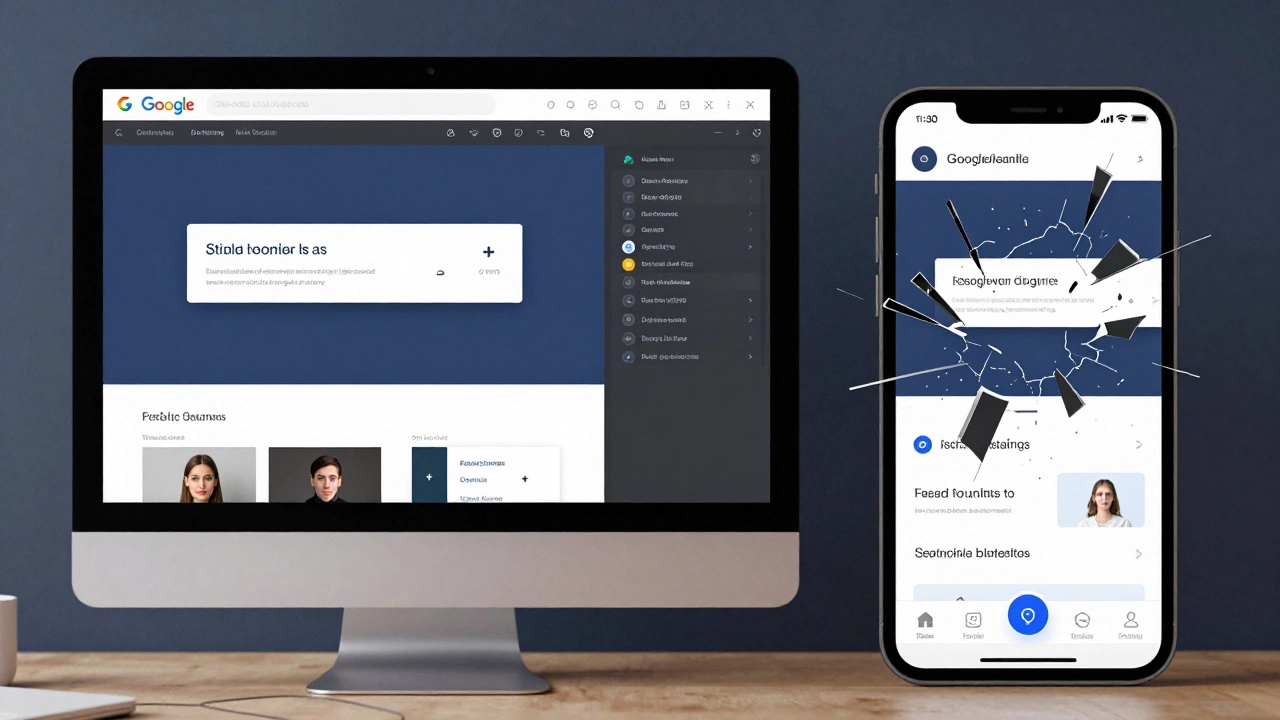
Google Web Designer doesn’t automatically make your designs responsive. That’s the big misunderstanding. It gives you tools to build responsive layouts-but it won’t do it for you. If you drag a banner ad into the tool and call it done, it’ll look great on your 27-inch monitor and fall apart on a phone. You have to build responsiveness in, step by step.
What Google Web Designer Actually Does
Google Web Designer is a free tool from Google that lets you create interactive HTML5 ads, banners, and simple web experiences without writing code. It’s popular with freelance designers, marketing teams, and agencies who need to push out ads fast. It generates clean HTML5, CSS3, and JavaScript under the hood. But it’s not a website builder like Webflow or WordPress. It’s an ad and animation tool that happens to output responsive-ready code-if you set it up right.
The interface looks like Adobe Animate or After Effects. You’ve got timelines, layers, and preview panels. You can add images, text, buttons, and even embed YouTube videos. But none of that means your design will shrink, stretch, or reflow properly on a 320-pixel-wide screen. You have to tell it how.
How to Make Google Web Designer Projects Responsive
There are three key steps to make any project in Google Web Designer respond to screen size:
- Create multiple breakpoints-Go to the Responsive panel and click Add Breakpoint. Start with desktop (1200px), tablet (768px), and mobile (375px). These aren’t magic numbers-they match real devices. Google’s own Material Design guidelines use these as anchors.
- Set element behavior per breakpoint-Click on any text box, image, or button. In the Properties panel, you’ll see a dropdown labeled Responsive. Here, you can choose to hide the element on mobile, change its position, resize it, or even swap it out for a different image. Don’t just scale everything down. A 400px-wide banner image looks terrible on a phone. Replace it with a cropped version optimized for small screens.
- Use percentage-based positioning, not pixels-If you position a button at x: 300px, y: 150px, it’ll stay fixed. That’s not responsive. Instead, use percentages. Anchor elements to the left, right, or center. Use Align to Parent options. Google Web Designer lets you pin elements to edges. That’s your friend.
Here’s a real example: I built a banner ad for a UK-based retailer last year. On desktop, it showed a full-width hero image with three product tags below. On mobile, I hid the tags and replaced the image with a tighter crop that focused only on the main product. I also reduced the font size from 24px to 16px and increased the tap targets so fingers could hit them easily. That’s responsiveness. Not scaling. Reimagining.
What Doesn’t Work
Many users assume that because Google Web Designer supports multiple screen sizes, it’s like a CMS that auto-optimizes. It’s not. You can’t just design once and expect it to work everywhere. Here’s what breaks:
- Fixed-width containers set to 960px-these will overflow on phones
- Text that’s too small on mobile-under 14px is unreadable on most screens
- Images that aren’t optimized-high-res JPEGs loaded on mobile waste bandwidth
- Animations that trigger on hover-mobile users don’t hover
- Using only one breakpoint-designing for desktop only and calling it “responsive”
One client came to me with a Google Web Designer ad that looked perfect on their MacBook. On their iPhone, the headline was cut off, the CTA button was half off-screen, and the background image took 8 seconds to load. Why? They used a 1200px template, dragged in a 3MB image, and never touched the responsive settings. It was a disaster.
Responsive vs. Adaptive: What’s the Difference?
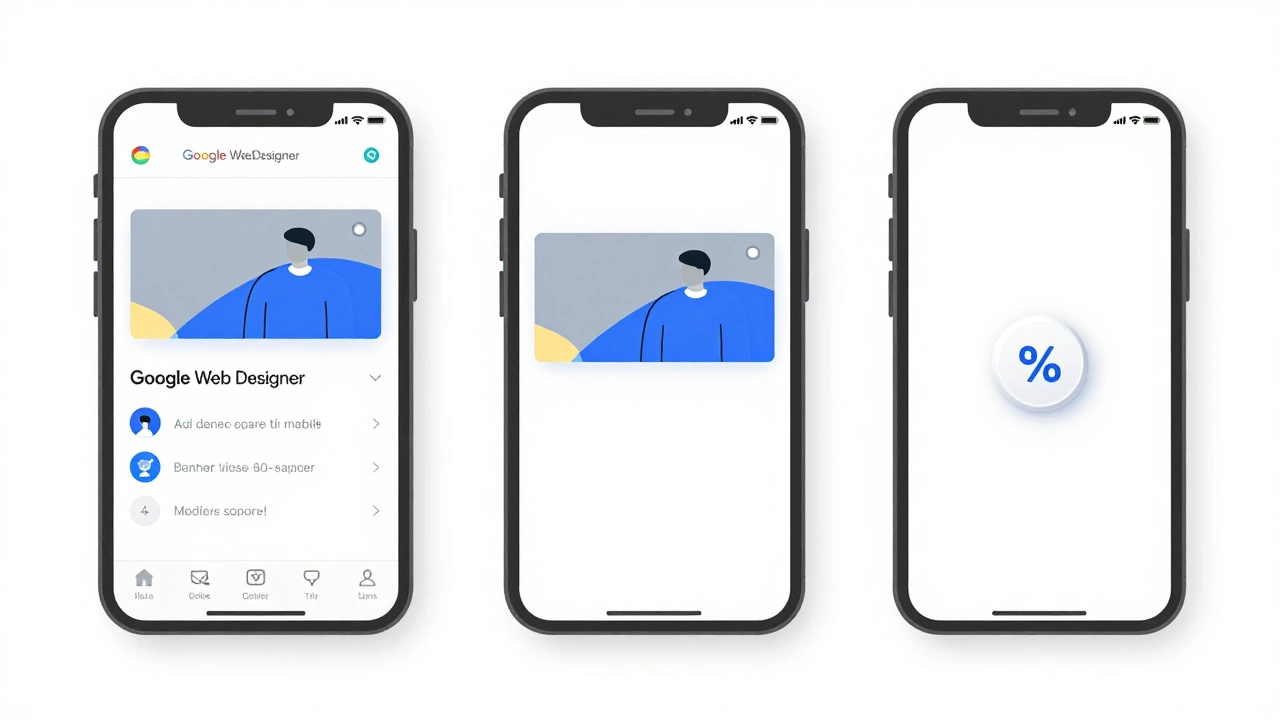
People mix up responsive and adaptive design. Responsive means one layout that fluidly adjusts using percentages, flexbox, and media queries. Adaptive means multiple fixed layouts for specific screen sizes. Google Web Designer does both. You can create a fluid layout (responsive) or design separate versions for each breakpoint (adaptive).
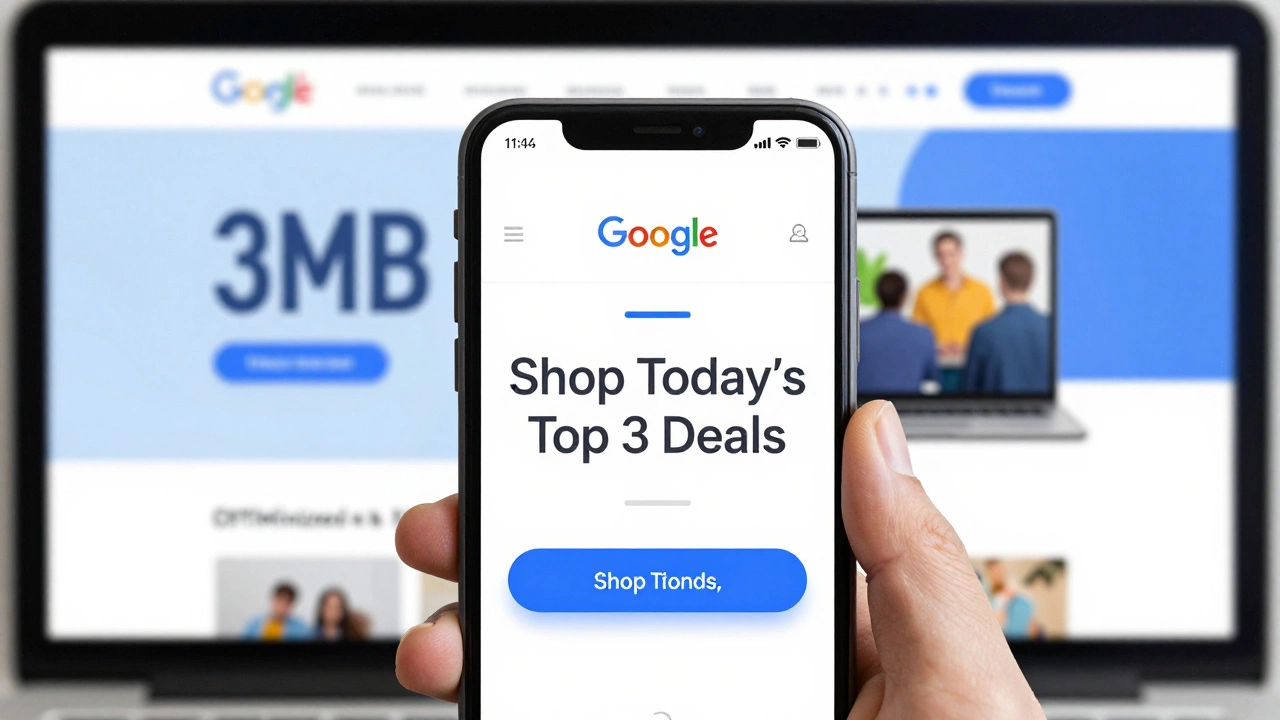
For ads, adaptive often works better. Why? Because you have control. You can remove elements that don’t translate well to mobile. You can change the message. You can simplify the interaction. A desktop ad might say “Explore our full collection.” On mobile, you might say “Shop today’s top 3 deals.” That’s not just resizing-it’s redesigning for context.
Performance Matters More Than You Think
Google Web Designer lets you add animations, video, and sound. But every extra element slows things down. Mobile users are on slower networks. If your banner takes more than 1.5 seconds to load, it’s not just annoying-it’s costing you clicks. Google Ads will penalize slow-loading creatives.
Here’s what to do:
- Compress all images with TinyPNG or Squoosh-aim for under 150KB
- Use WebP format-it’s 30% smaller than JPEG with the same quality
- Limit animations to 3 seconds max
- Never embed full HD videos-use GIFs or short looping MP4s under 500KB
- Test on real devices, not just emulators
I tested a banner I built in Google Web Designer on a 2018 iPhone SE. It loaded in 1.2 seconds. On a mid-range Android phone from 2025, it took 1.8 seconds. That’s acceptable. But the same banner with an unoptimized background video? 7.3 seconds. Google Ads rejected it. You don’t get a second chance on mobile.
Real-World Use Cases
Google Web Designer is mostly used for display ads, but people also use it for landing pages, microsites, and interactive email headers. Here’s how it’s used in practice:
- E-commerce banners-Retailers use it to create dynamic ads that change products based on user behavior. One fashion brand saw a 22% increase in click-throughs after switching from static banners to Google Web Designer ads with personalized product carousels.
- Event promotions-A local theatre in Leeds used it to build a mobile-first landing page for their winter show. The design collapsed into a single column on phones, with a big “Book Now” button that took users straight to the ticket portal.
- Google Display Network ads-All Google Display Network ads must be HTML5. Google Web Designer is the easiest way to build them without coding.
It’s not for full websites. But for ads, landing pages, and micro-interactions? It’s powerful-if you treat it like a design tool, not a magic button.
Alternatives to Consider
If you’re building full websites, not just ads, Google Web Designer isn’t the right tool. Here are better options:
| Tool | Best For | Responsive by Default? | Learning Curve |
|---|---|---|---|
| Google Web Designer | HTML5 ads, animated banners | No-you must build it | Low to medium |
| Webflow | Full responsive websites | Yes | Medium |
| Figma | Design prototypes, UI/UX | Yes (with plugins) | Medium |
| Adobe Express | Quick social ads, templates | Yes | Very low |
Webflow is the closest to a full website alternative. Figma is better for designing layouts before you code. Adobe Express is great if you just need to slap text on a template. But if you’re in the Google Ads ecosystem, Google Web Designer is still the standard.
Final Verdict
Is Google Web Designer responsive? No-not by itself. But it gives you everything you need to make responsive designs. The tool doesn’t lie. If your banner looks broken on mobile, it’s not the tool’s fault. It’s yours. You skipped the responsive settings. You didn’t test on real devices. You didn’t optimize images.
Responsiveness isn’t a feature. It’s a process. And Google Web Designer is just one step in that process. If you treat it like a paintbrush-not a magic wand-you’ll build ads that work everywhere. If you treat it like a one-click solution? You’ll end up with ads that get ignored, rejected, or worse-reported as broken.
Test on a phone. Every time. Before you export. Before you upload. Before you hit send. That’s the only rule that matters.
Can Google Web Designer create mobile-friendly ads automatically?
No. Google Web Designer doesn’t auto-convert designs to mobile-friendly formats. You have to manually set up breakpoints, adjust element sizes, and hide or replace content for smaller screens. Without these steps, your ad will look broken on phones.
Do I need to know code to use Google Web Designer?
No, you don’t need to write code to use Google Web Designer. The interface is visual-you drag and drop elements, set animations, and define interactions. But if you want to fine-tune performance or fix layout issues, knowing basic HTML and CSS helps. The tool generates clean code underneath, so you can open it in a text editor if needed.
Is Google Web Designer still supported in 2026?
Yes. Google still maintains and updates Google Web Designer as of 2026. It’s the official tool for creating HTML5 ads for Google Display Network and YouTube. While newer tools like Adobe Express offer simpler templates, Google Web Designer remains the most flexible option for custom, interactive ads that need to meet strict ad platform requirements.
What file size should my Google Web Designer ad be?
For Google Display Network ads, the maximum file size is 150KB for static ads and 500KB for animated ads. Most successful ads stay under 300KB. Use WebP images, compress animations, and avoid embedded video. A 1MB ad will load too slowly on mobile and get rejected by ad platforms.
Can I use Google Web Designer to build a full website?
Technically yes, but it’s not practical. Google Web Designer lacks CMS features, form handling, SEO controls, and backend integration. It’s designed for ads and micro-interactions. For full websites, use Webflow, WordPress, or a code-based framework like React. Google Web Designer is a specialist tool, not a general-purpose website builder.