
WordPress File Structure Explorer
Click on a file or directory below to learn its purpose and best practices for editing it.
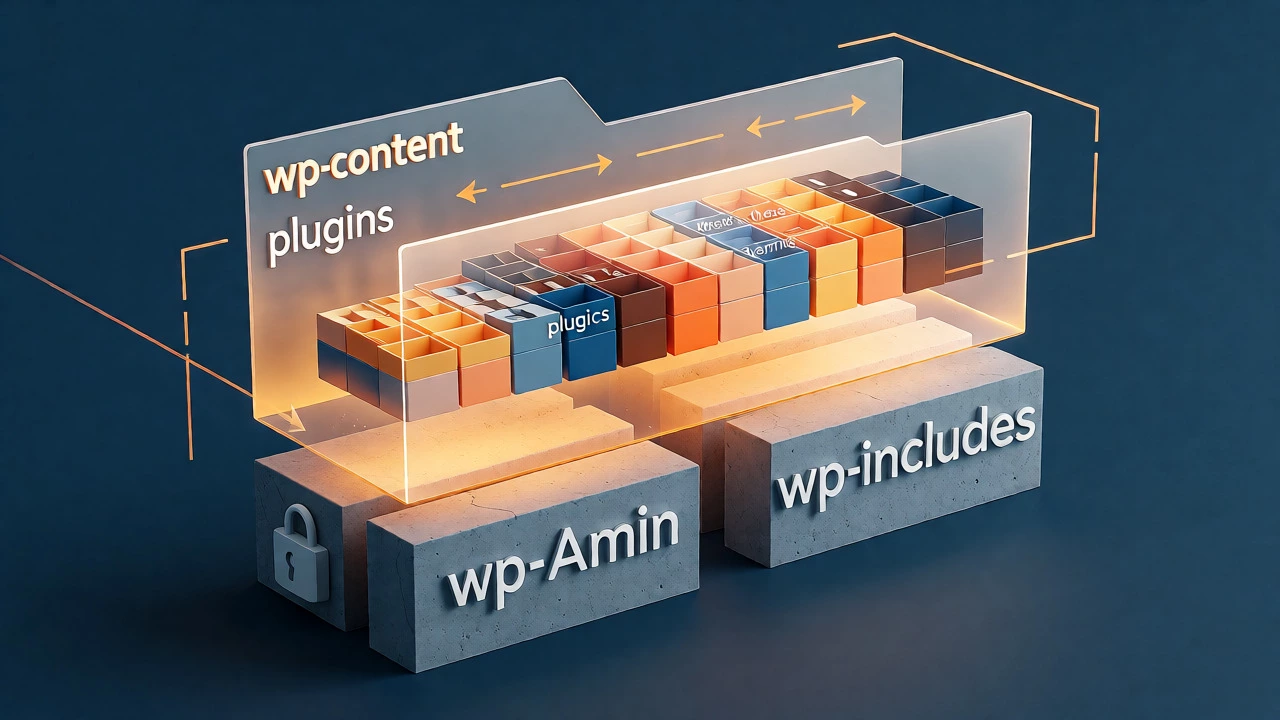
wp-content. This is where your custom work lives. Never edit core files (wp-admin or wp-includes) directly, as updates will overwrite your changes.
Think about the last time you visited a website that felt sluggish or looked like it was stuck in 2015. Chances are, someone didn't know how to start developing WordPress properly. It’s not just about dragging and dropping blocks; it’s about understanding the engine under the hood. If you’re looking to build custom themes, create your own plugins, or just fix things without breaking the whole site, you’ve come to the right place. This isn’t a theoretical lecture. We’re going to get your hands dirty with code, tools, and real-world workflows that actually work.
The Core Skills You Actually Need
Before you install anything, let’s be honest about what you need to know. You don’t need a computer science degree, but you do need three specific languages. First is HTML, which is the skeleton of every page. Then there’s CSS, the skin and clothes that make it look good. Finally, and most importantly for WordPress, is PHP, the server-side scripting language that powers WordPress itself.
Do you need to be a PHP wizard? No. But you need to understand variables, loops, and functions. Why? Because WordPress hooks-those magical actions and filters that let you change behavior without editing core files-are all written in PHP. If you can read a function call, you’re halfway there. JavaScript is useful too, especially if you want to build interactive elements or dive into the Gutenberg block editor, but you can survive initially without being an expert.
Setting Up Your Local Development Environment
Stop working directly on live sites. Seriously. One typo in your functions.php file and your site goes down while your client panics. The pro move is setting up a local environment on your laptop. This lets you break things freely without consequences.
You have a few solid options here:
- LocalWP is probably the easiest starting point. It’s free, has a nice interface, and handles database setup automatically.
- XAMPP or MAMP are older school but reliable. They give you more control over Apache and MySQL versions.
- Docker is great if you want industry-standard containerization, though it has a steeper learning curve.
Once installed, spin up a fresh WordPress instance. Make sure you enable debugging by adding define( 'WP_DEBUG', true ); to your wp-config.php file. This will show you errors instead of hiding them behind a blank white screen, which is crucial when you’re learning.
Understanding the WordPress File Structure
When you unzip WordPress, you see folders like wp-admin, wp-includes, and wp-content. Here’s the golden rule: never edit files inside wp-admin or wp-includes. Those are core files. When WordPress updates, your changes vanish. All your work happens in wp-content.
Inside wp-content, you’ll find three key directories:
plugins: Where functional extensions live.themes: Where the design and presentation layer lives.uploads: Where media files go.
If you want to customize a theme, you should create a child theme. Editing a parent theme directly means losing your changes when the developer releases an update. A child theme inherits styles and templates from the parent but allows you to override specific parts safely.
Your First Project: Building a Custom Theme
Let’s say you want to build a theme from scratch. It sounds intimidating, but it’s mostly just organizing files. Every theme needs at least two files: style.css and index.php. The style.css file isn’t just for styling; it contains the theme header comment that tells WordPress this folder is a theme.
Here’s a basic structure you’ll use often:
| File Name | Purpose |
|---|---|
style.css |
Contains theme metadata and CSS rules. |
index.php |
The fallback template for displaying posts. |
header.php |
Contains the opening HTML tags and navigation. |
footer.php |
Contains closing HTML tags and scripts. |
functions.php |
Adds features and enqueues scripts/styles. |
In your functions.php file, you’ll use wp_enqueue_style() and wp_enqueue_script() to load your assets. Don’t hardcode link tags in your HTML. Using these functions ensures compatibility with other plugins and prevents duplicate loading.
Mastering Hooks: Actions and Filters
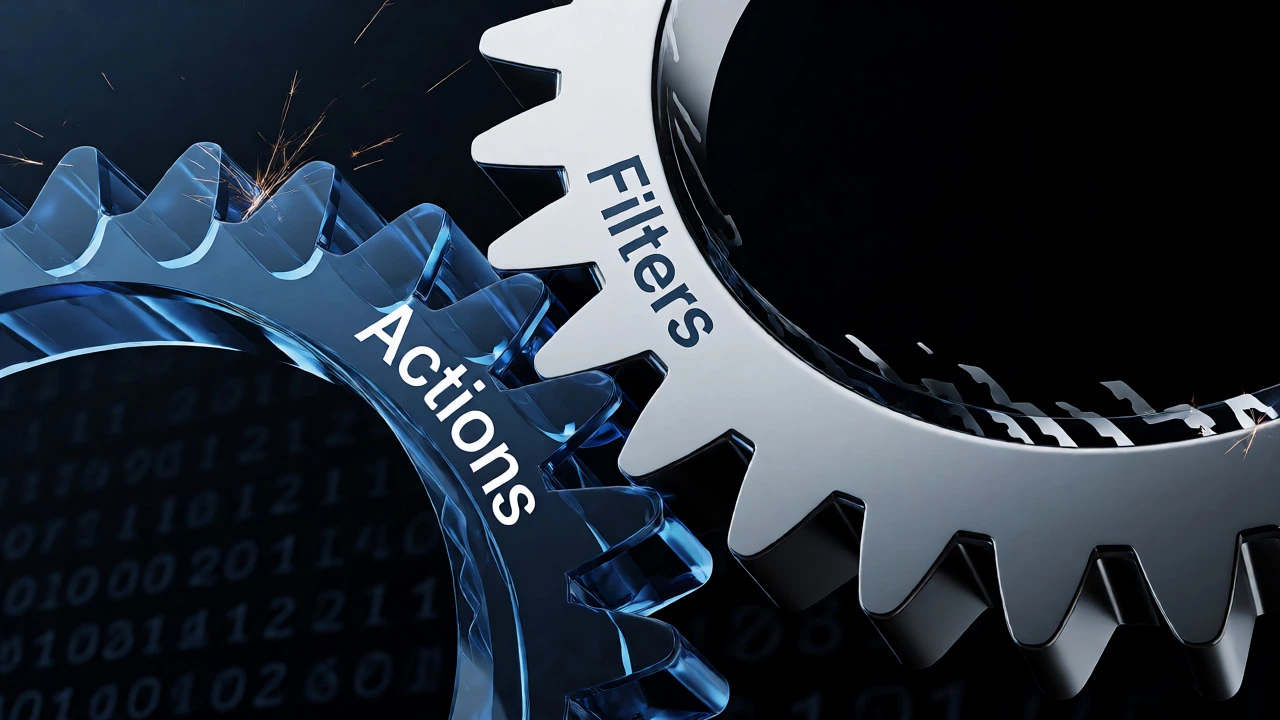
This is where WordPress development gets interesting. Instead of hacking core files, you use hooks. There are two types: Actions and Filters.
An Action lets you run code at a specific point during execution. For example, wp_head is an action hook. Plugins use it to inject meta tags or tracking pixels into the head section of your pages. You attach your function to it using add_action( 'wp_head', 'my_custom_function' );.
A Filter lets you modify data before it’s saved or displayed. Think of it as a funnel. Data goes in, gets changed, and comes out. The the_title filter, for instance, lets you change post titles dynamically. Maybe you want to append " | My Site" to every title. You’d use add_filter( 'the_title', 'my_title_modifier' );.
Learning to read the WordPress Codex to find available hooks is a superpower. Once you spot the hook you need, writing the function is straightforward.
Creating Your First Plugin
Themes handle presentation; plugins handle functionality. Want to add a custom shortcode? Or maybe send an email when a user registers? That’s plugin territory. Creating one is surprisingly simple. Create a folder in wp-content/plugins, then add a single PHP file with a header comment.
Example plugin header:
<?php
/*
Plugin Name: My First Plugin
Description: Does something cool.
Version: 1.0
*/
?>
Activate it in the dashboard, and you’re ready to write logic. Use register_activation_hook() to set up database tables or default options when the plugin turns on. Keep your code modular. Separate your admin logic from frontend logic so you don’t load unnecessary code on public pages.
Tools That Save Your Sanity
Coding blind is hard. Install these browser extensions immediately:
- Query Monitor: Shows database queries, API calls, and template hierarchy info.
- Developer: Highlights template files and shows conditional tags.
- Code Snippets: Lets you test PHP snippets without creating a full plugin.
Also, learn to use Git. Even if you’re solo, version control saves you from disasters. Commit your changes daily. If you break something, you can roll back to yesterday’s version in seconds.
Do I need to know JavaScript to develop WordPress?
Not strictly for traditional theme development, but yes for modern block-based development. If you want to create custom Gutenberg blocks, you need React.js knowledge. However, for classic themes and basic plugin logic, PHP and CSS are sufficient to start.
Is it better to build a theme from scratch or use a starter theme?
For beginners, a starter theme like Underscores (_s) or GeneratePress is highly recommended. From-scratch builds require handling accessibility, RTL support, and security standards yourself. Starter themes provide a solid foundation so you can focus on customization rather than boilerplate.
How long does it take to become proficient in WordPress development?
With consistent practice (10-15 hours a week), you can build simple custom themes and plugins within 3-6 months. Mastery of complex scenarios, performance optimization, and security best practices usually takes 1-2 years of real-world project experience.
What is the difference between a child theme and a custom theme?
A child theme inherits styles and templates from a parent theme, allowing safe updates. A custom theme is built entirely from scratch or heavily modified without relying on a parent. Child themes are safer for modifications to existing premium themes; custom themes offer total control but require maintaining all code yourself.
Can I learn WordPress development without knowing PHP?
You can use page builders like Elementor or Divi without coding, but that’s not really "development." To truly develop WordPress-creating unique functionalities, optimizing performance, and building custom solutions-you must learn PHP. It’s the backbone of the CMS.